

It’s Time to Set up a Spreadshirt Shop
There are thousands, if not millions of people out there whose heads are filled with loads of creative ideas.
Their passion is to create art and other products and share them with the world.
But within that group is another set of people who specifically love to create clothes for other people.
The fashion industry is huge and obviously not everyone can be a part of the high fashion society, but for the average Joe a t-shirt may be much more appealing anyway.
More affordable for sure!
What’s even more important to note, is the fact that setting up your own Spreadshirt shop or t-shirt label can be very expensive.
Particularly when you’re just starting out and don’t even have any customers yet, buying blank shirts and printing your designs on them can become quite costly.
If no one buys your shirts, you’ll end up sitting with thousands of dollars worth of stock.
Trust me, I’ve been there.
I actually still have a few hundred t-shirts which I still haven’t been able to sell.
And since they’re not going anywhere, they’re literally dead stock.
But there’s a solution to this problem and it’s called “print on-demand” (POD).
Print on-demand has been around for a while already, but it only really took off around 2008.
The nice thing about POD services providers is that they allow you to test your ideas and projects before you go all in with everything you have.
The margin you make per shirt is fairly low at the beginning, but given that you don’t have to hold any stock and most of the other hassle is done for you (such as printing, delivery, invoicing etc), it’s actually a pretty good deal to start with.
Today there are various different POD websites out there and they all differ a little bit in the way they work.
If you’ve read my FREE eBook “Apparel on Autopilot”, you’ll know that I choose to work with Spreadshirt on most of my projects.
Not only because I’m familiar with the platform, but also because it’s probably one of best options available in terms of striking a balance between efficient processes and control over your Spreadshirt shop.
That being said, they’re obviously not perfect and some issues still bother me to this date.
However, if you’re just starting out and what get moving quickly with your own shop, then I highly recommend Spreadshirt.
So where do you start? Well, that’s the purpose of this article.
Whether you want to be the owner of an online t-shirt Spreadshirt shop or just want to create designs and earn your commissions.
I’ll show you how to set up your own Spreadshirt T-Shirt Shop and create your own T-Shirt in under 10 minutes.
And if you’re a designer, you can get started even quicker!
How to Set up a Spreadshirt T-Shirt Shop in 10 Minutes
For those of you who want to get this done really quickly, I suggest you have a look at the video above.
It will guide you through the process step-by-step.
If it’s a bit too quick for you and you’re not in a rush, I suggest you take your time and read through the detailed instructions below.
Either way, it won’t take particularly long and you’ll be on your way to your own t-shirt Spreadshirt shop in no time.
Signing up
It all starts off with the Spreadshirt homepage (what a surprise!).
It doesn’t really matter whether it’s on the US or EU website.
Their setup is essentially the same.
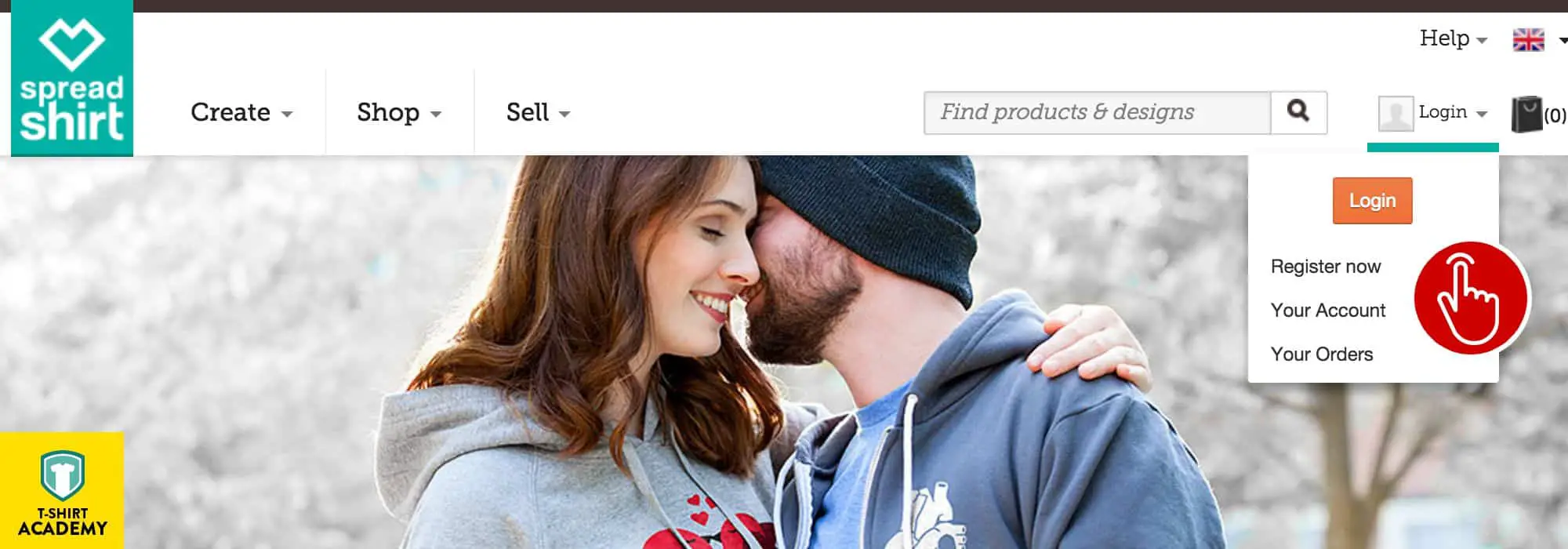
In the top right corner of the screen you can see the “Login” Menu-Item.
Move your mouse over the link and click it.
This will show a dropdown-menu with various options including a “Register Now” link.
Click it!
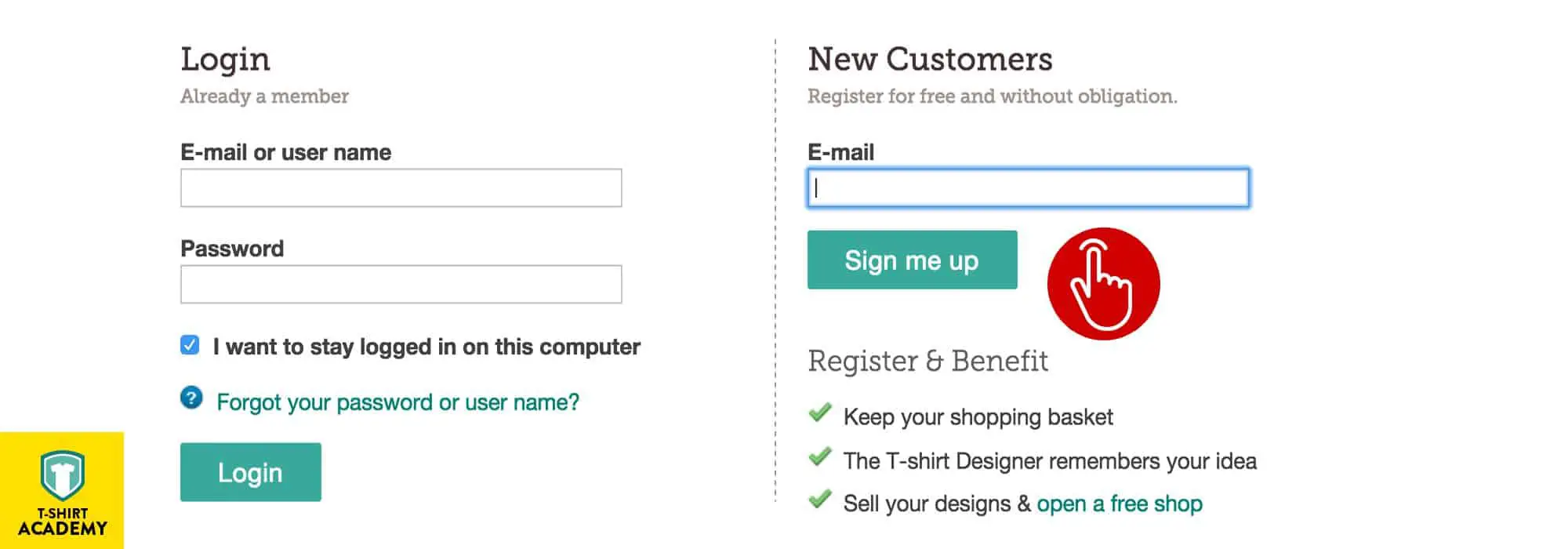
This will open the login and registration page.
On the left you’ve got a login form for those of you who already have an account and on the right you’ll find a simple input field for your email address for the rest of you guys.
This tutorial primarily focuses on new users, who have never dealt with any of Spreadshirt’s websites before.
All you need to do here is enter your email address and hit the “Register” button.
Confirm Email, set Password, Anonymous Account
Once you’ve hit that button, two different things will happen.
First of all, you’ll notice that you immediately get forwarded to the user area of your new account.
What you’re currently looking at is your main dashboard.
But everything is set up as “Anonymous” and that’s why we still need to take a few more steps.
The second thing that happens is that you’ll notice a new email in your inbox.
So unless you always have that open and already noticed it, make sure you open your standard email client or online mail account now.
Sitting in your inbox, waiting for your feedback, is an email confirmation request.
Before you can start to use the full functionality of your new account, you need to confirm your email address by clicking the link.
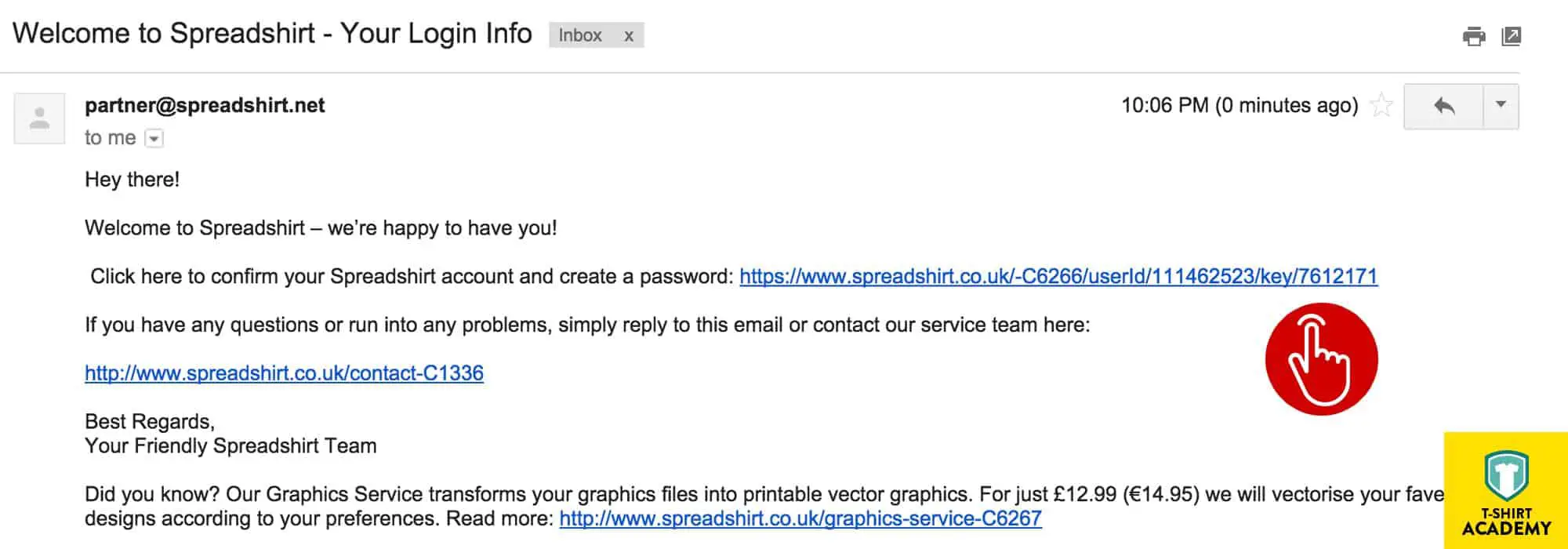
Once you click the link, a new page will open in your browser.
This process confirms to Spreadshirt that you are, in fact, a human being with a real email account.
The new page that you now have in front of you, prompts you to set your password.
Yes, that’s right, you didn’t set anything before, so you need to do it now.
Choose whatever you like here.
You know best, what type of passwords you prefer ?
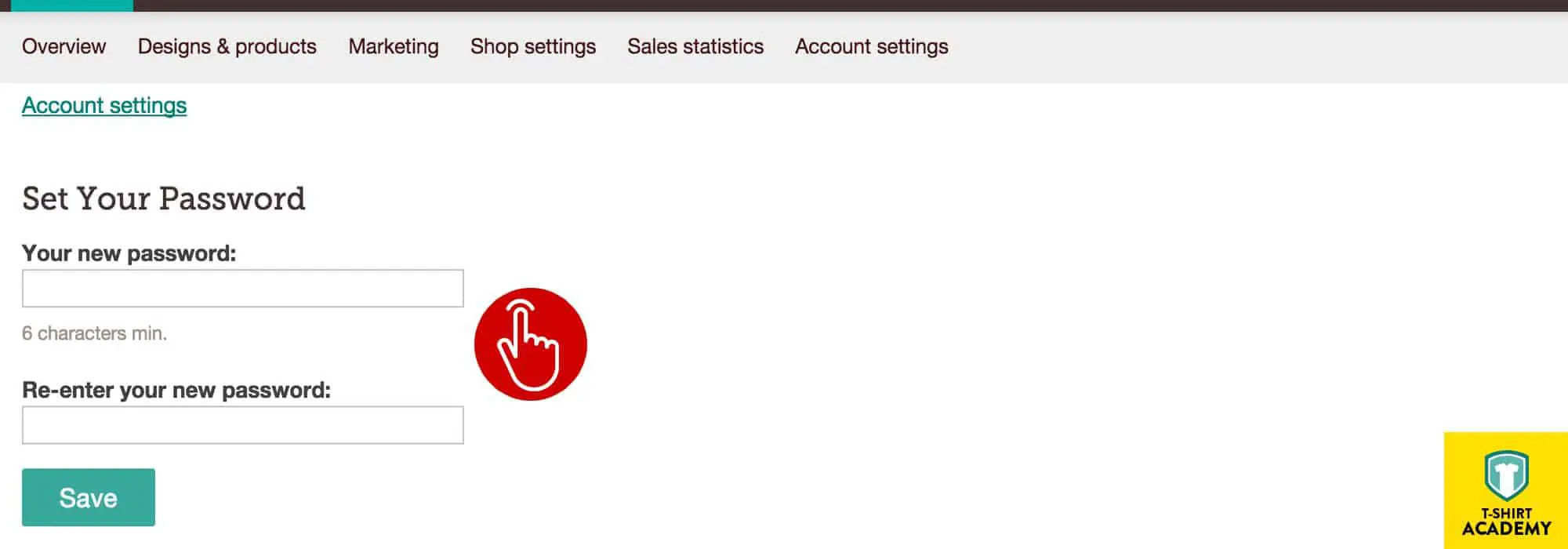
Once you’ve entered and saved your new password, you’ll be redirected to a new page, asking you to select your region.
To be utterly honest, I don’t really understand why you need to make that choice because usually that should have been defined by the respective country-specific website that you were on while registering.
But hey, they’re asking for it, so just pick the one you like.
For the purposes of the tutorial, I’ll be continuing down the path of the “UK” region in order to keep everything legible for you.
If you pick the “US” region it will ultimately be the same.
These differences only become relevant once you start digging into the nitty gritty details of all the account settings.
But we’ll handle that in a separate tutorial.
Set Username and Your Data
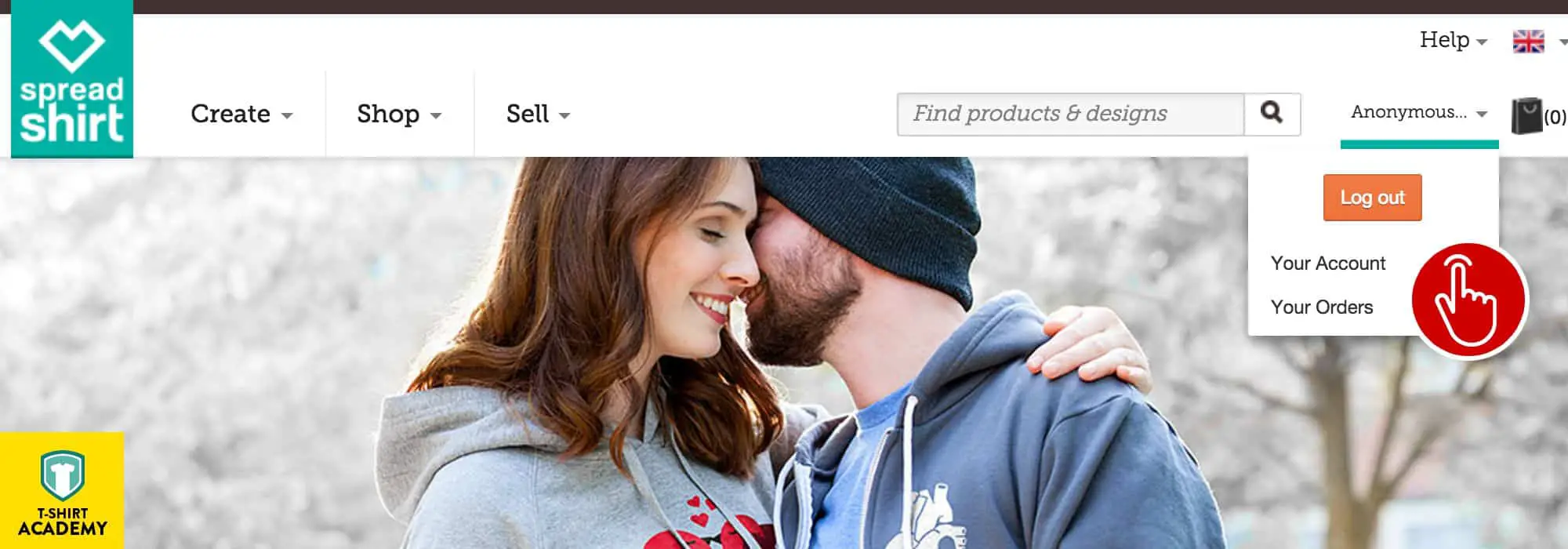
In case you haven’t noticed yet, even though you’ve confirmed your email address, your account is still labeled as “Anonymous”.
That’s why we’re going to change it now.
On the left hand side you should see a menu with two sections.
One is called “Account Settings” and the other “Seller Account”.
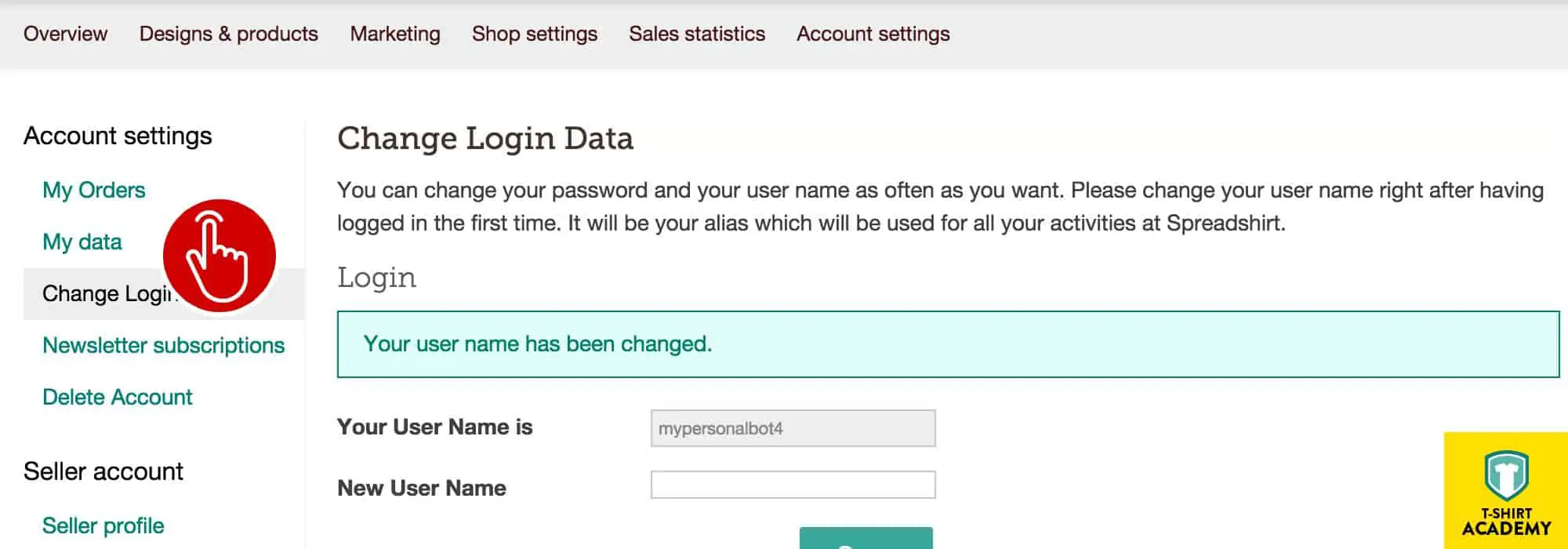
Under the former, look for the menu item “Change Login Data” and click on it.
This will bring you to the section of the user area, where you can either change your username or, if necessary, also your password.
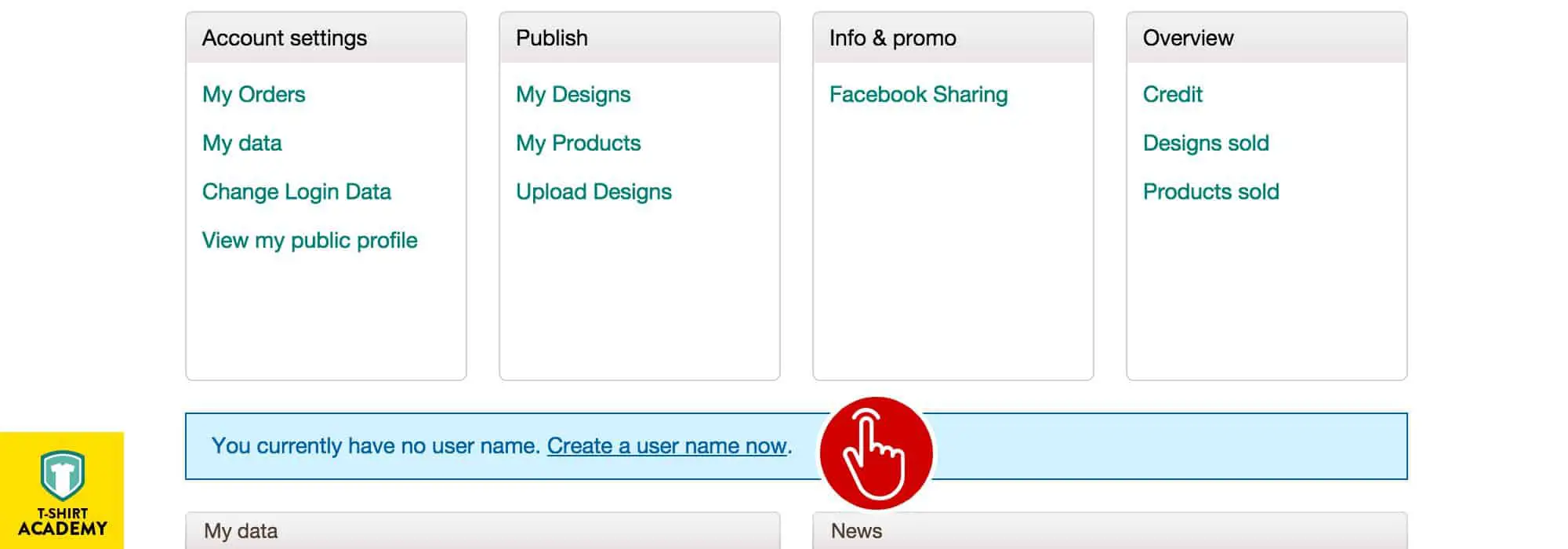
The process is simple enough.
The greyed out box shows your current username, which in this particular case should be your email address.
In the “New User Name” field you can enter your preferred alias.
Remember that your username of choice might already be taken by someone else.
That’s why, as you are filling in the field, the form will continuously check its database for duplicates and you’ll see a little text-hint pop up, informing you whether the name is still available or not.
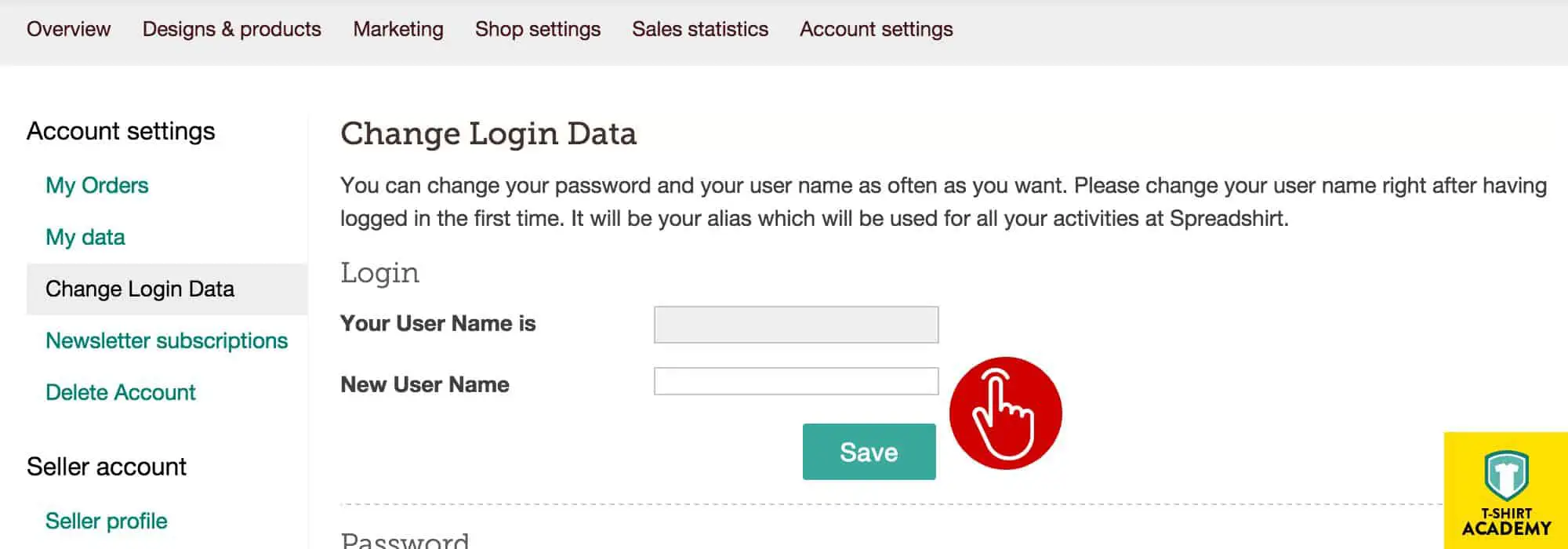
Once you’ve done that, go back to the menu on the left and now look for the menu item “My Data”, which you’ll find under “Account Settings”.
When the new page loads, you’ll see that it prompts you to fill in the form with your personal details.
You only need to fill in the fields that are marked with an asterisk.
However, please make sure you enter real data if this is going to be an account that you want to earn money with.
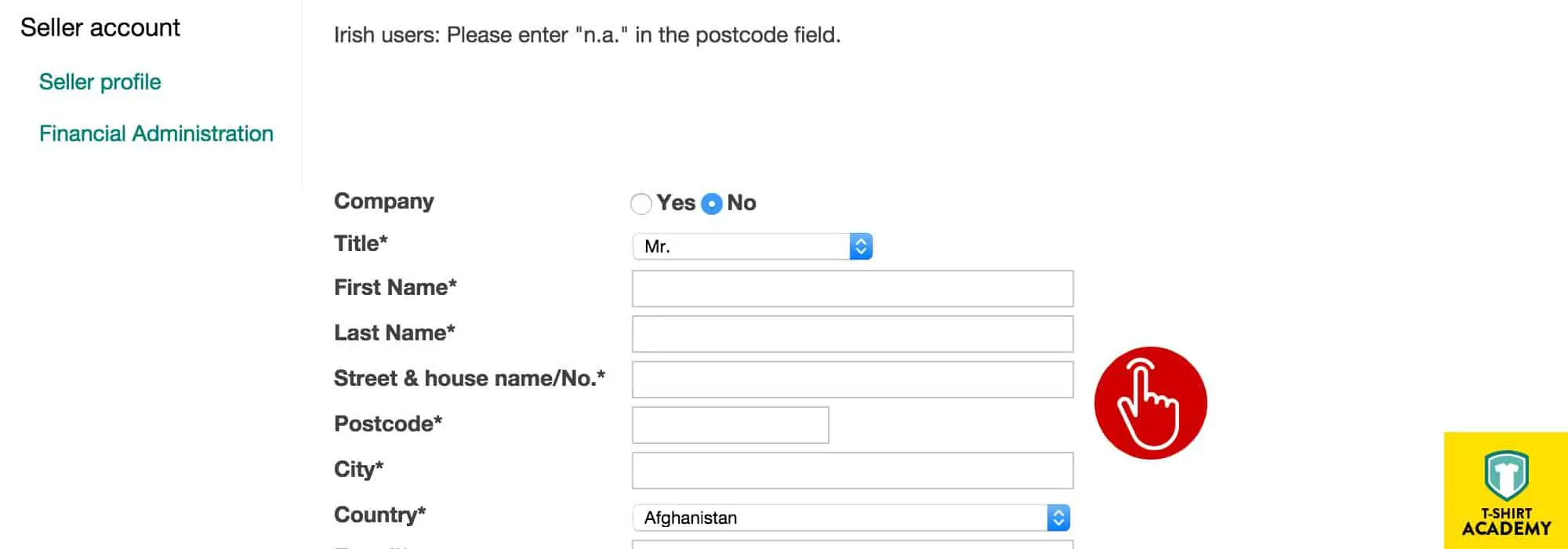
This is absolutely necessary for legal reasons.
Legislation may be different in your specific country, but in most cases websites and hence also online Spreadshirt shops are required to post a legal notice on their website.
Failure to do so may be deemed a legal offense and in some countries, such as Germany, you may be fined if some jerk of an lawyer happens to bump into your website.
Therefore I also suggest to fill everything in correctly.
Don’t forget that Spreadshirt will need this data anyway, in order to process your payout and it would be a bit strange if you had to submit documents to the taxman, which had the name “Bugs Bunny” on them.

Activate Spreadshirt Shop and Save User Info
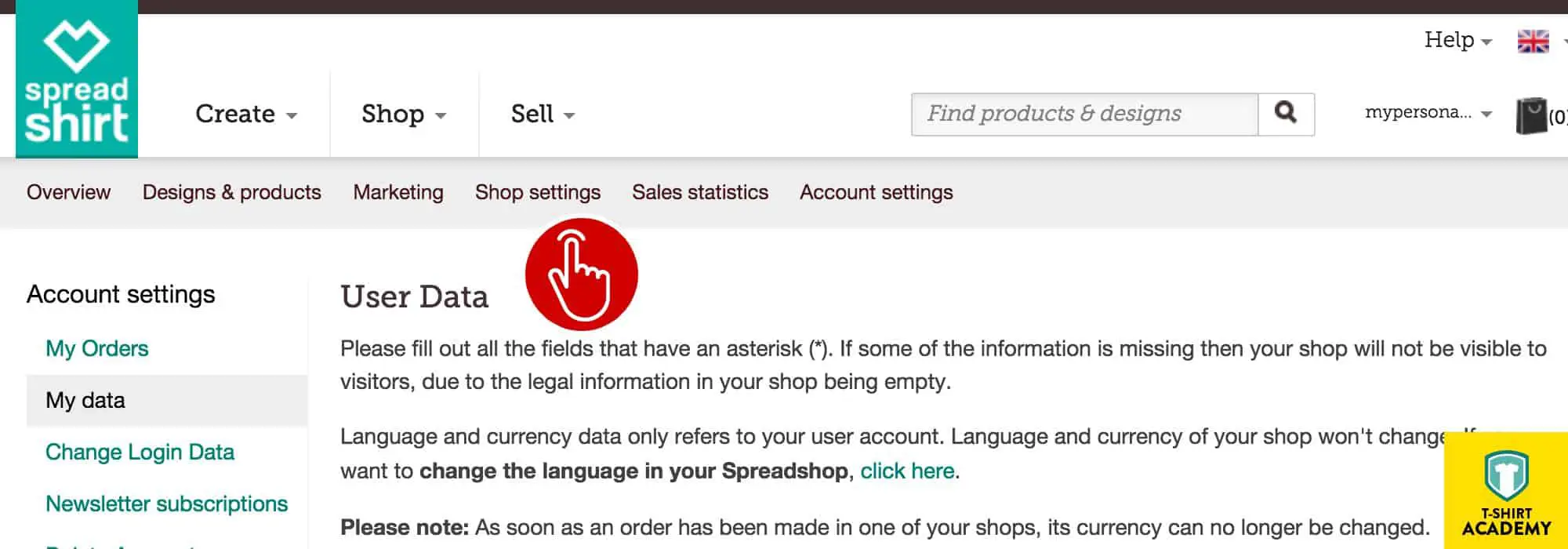
Now that we’re done with the basis account setup, the next step is the activation of your first Spreadshirt shop! In the top horizontal menu, click on the menu item “Shop Settings”.
This will bring you to a new section of the website, which lets you set up your first online Spreadshirt shop in 3 easy steps.
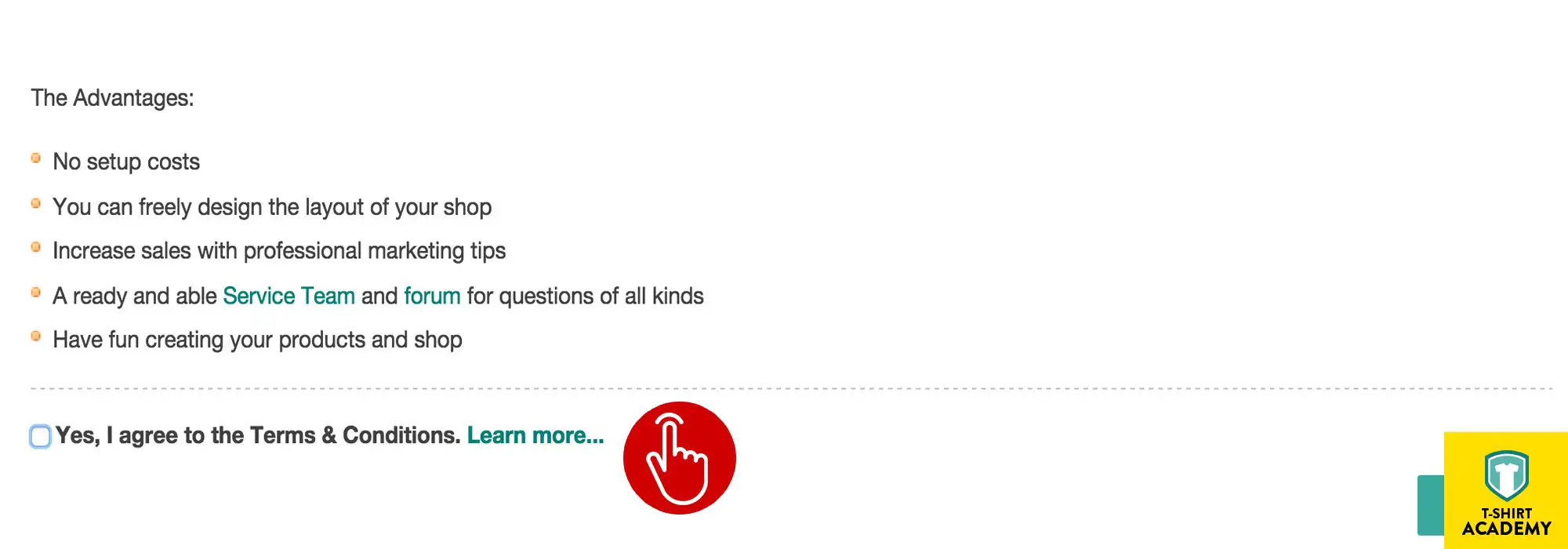
However, before you can start, you first need to confirm that you accept Spreadshirt’s terms and conditions.
They give you a quick summary of what you are about to “sign”.
I suggest you quickly read through it, so you have a rough idea of what it says.
But in principle, it’s ok for you to just tick the box in the lower left corner and move on to the next step.
Once you’ve done that, the process starts with Step 1: User Information.
This step is easy, because you’ve already filled everything in at an earlier stage.
Therefore, all you really need to do here is double-check the data and confirm.
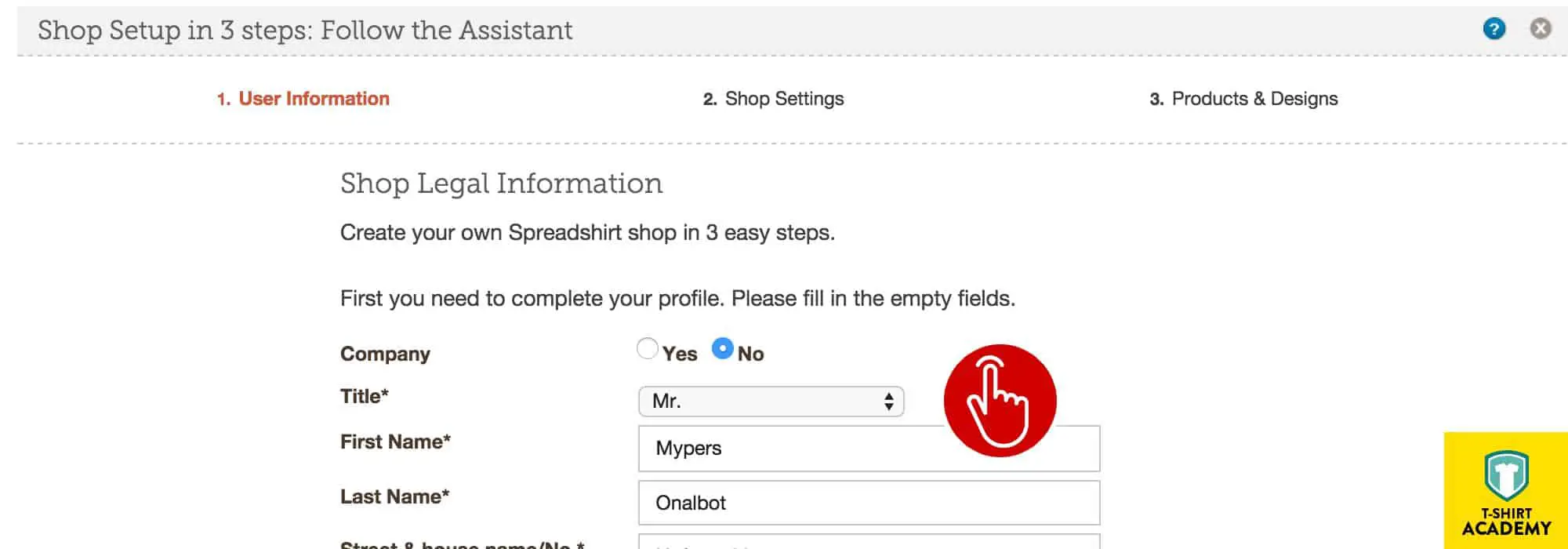
You then get sent to Step 2: Language & Currency.
Since you already set Locale and Language for your account, in most cases this won’t need any adjustments.
However, if you want to set up an account in a different language or for a different region, then this is where you would do it (if it was your first Spreadshirt shop).
What’s more important, is your Spreadshirt shop name.
Right now, your Spreadshirt shop only has an ID number assigned to it and you would be able to reach it via https://YOUR_SHOP_ID.spreadshirt.co.uk (or whatever top-level domain you pick).
But ideally you want to give your Spreadshirt shop a proper subdomain as well, right? This is where you choose it.
Enter your preferred Spreadshirt shop name/shop URL.
Remember that the name might already be taken by someone else.
That’s why, as you are filling in the field, the form will continuously check its database for duplicates and you’ll see a little text-hint pop up, informing you whether the name is still available or not.
If it is, then it’s time to save the data and move on to the last step.
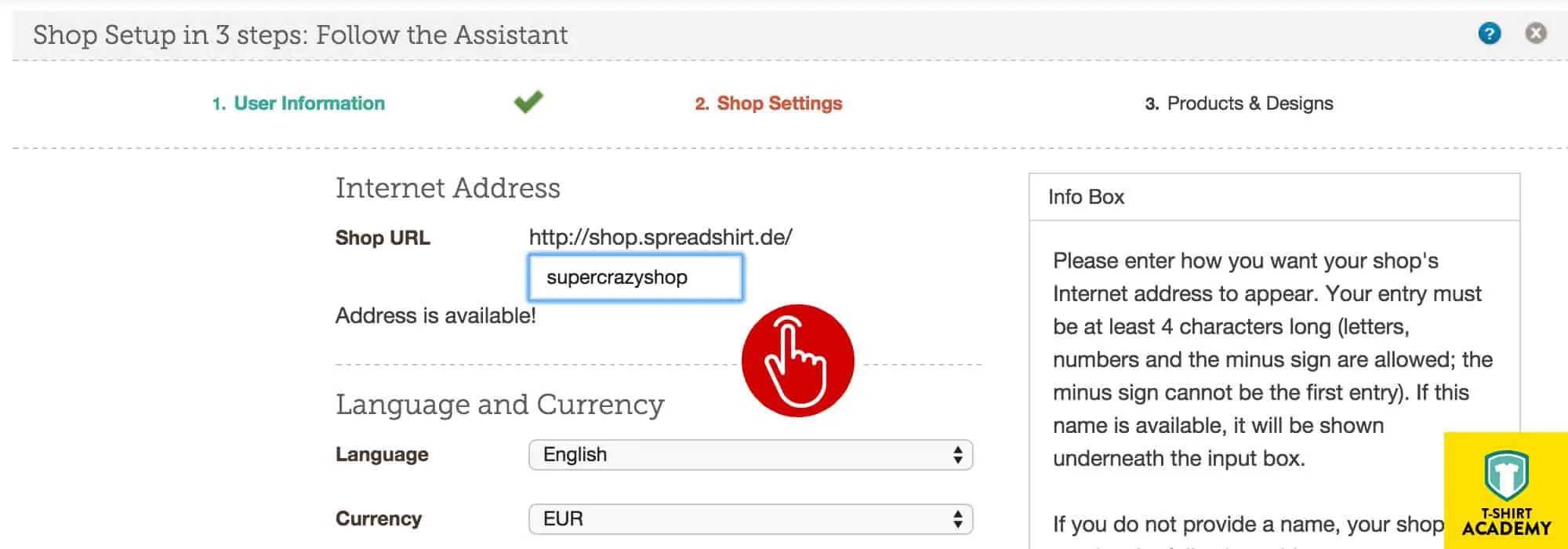
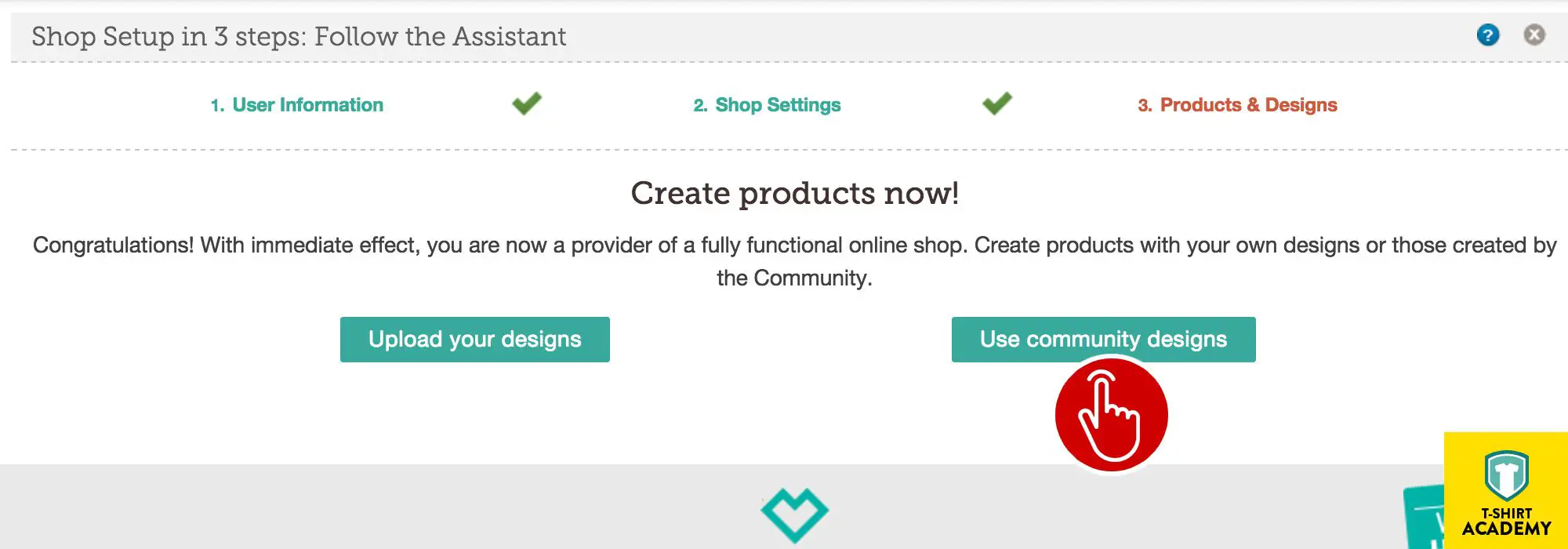
Your last step is Step 3: Choosing Your Designs.There are two things you can do here, but if you’re just starting out, I really only recommend one of them.
Essentially this is where you choose whether you would like to sell your own designs in your Spreadshirt shop or pick designs from the many millions that are available via the marketplace.
This is not a once and for all, final choice.
You can switch or mix it up later on as well.
However, simply in order to simplify and accelerate the process, I always recommend people to start off with community designs first.
This allows you to create loads of products with millions of options and takes away all the work associated with creating, uploading and selling your own designs.
I know that many of you want to do that, but we’ll get to that later.
For the time being, please use “Community Designs”.
Create Products
Your Spreadshirt shop is now fully online and ready to accept customers.
The only thing it’s missing, are some products to sell.
And guess what, this is where it starts to get fun.
Click the button marked “Create Products” and watch the Spreadshirt Designer unfold in front of your eyes.
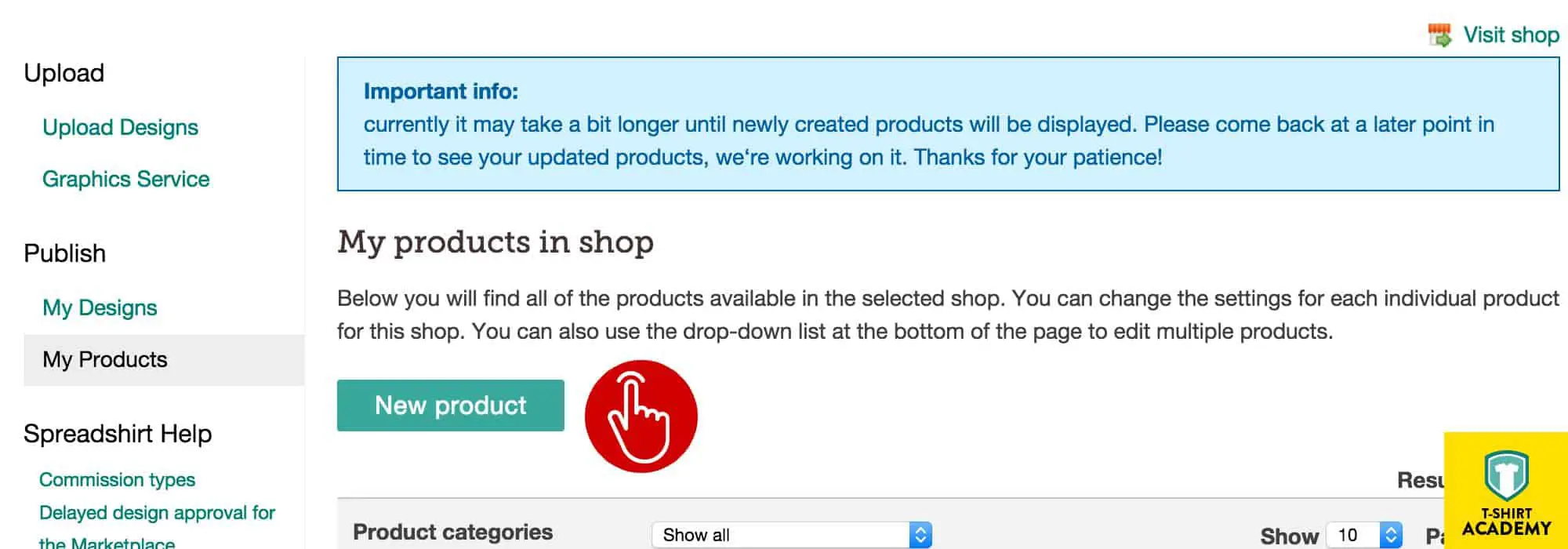
This is the main tool which you will be using to create products for your Spreadshirt shop.
It’s no different from when you buy something for yourself directly from the Spreadshirt website, except that you’re now creating stuff for your own storefront.
I don’t think I need to explain how it works in detail because it’s fairly self-explanatory anyway.
Create as many products as you like.
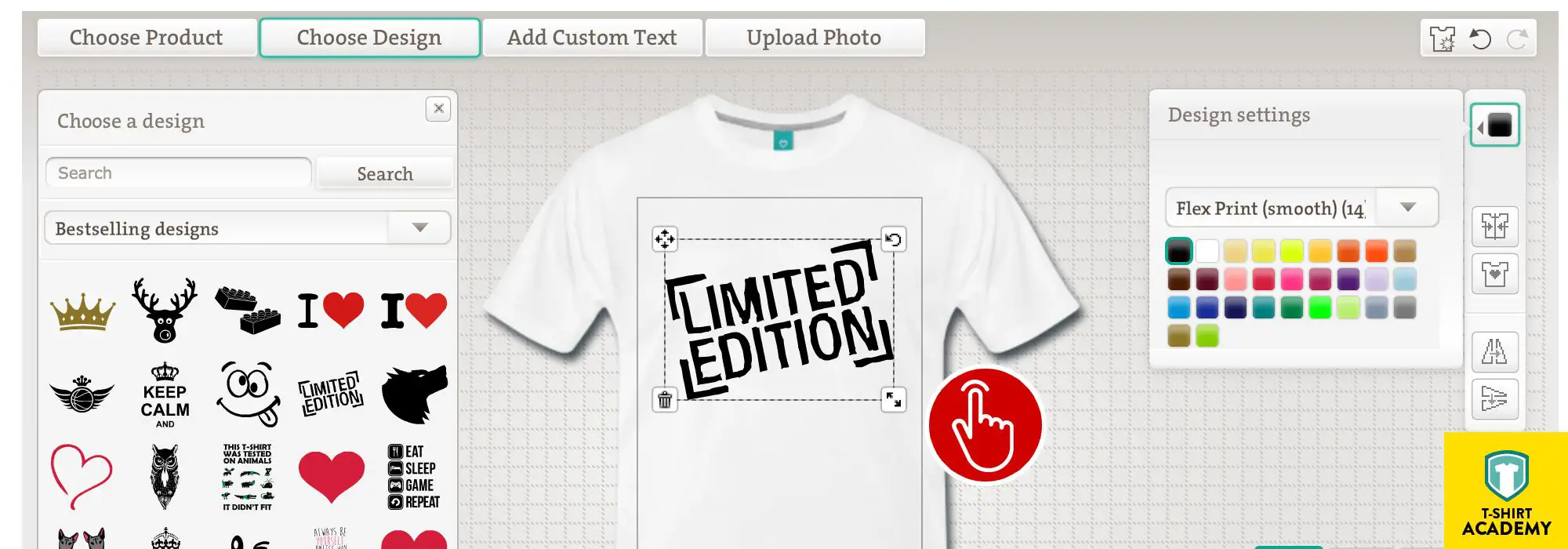
Once you’re done with creating all your designs, you need to close the T-Shirt Designer.
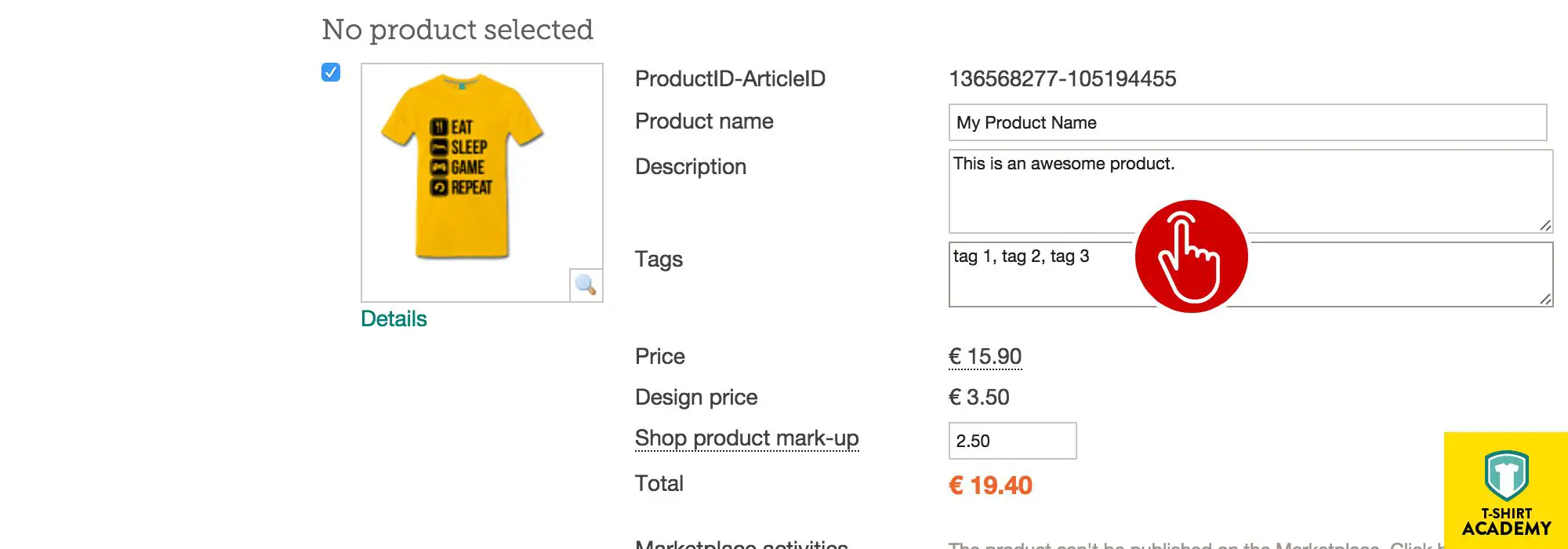
All your products will then be listed within the user area.
Here you can give them names, a description, appropriate tags and and additional markup price.
This markup will obviously also indirectly influence your own commission when you make a sale.
But let’s not focus on that right now.
There will be a separate tutorial on how commissions work.
Visit Your Spreadshirt Shop
Now that you’ve finished creating your products, it’s time to visit your new Spreadshirt shop.
You can do this very easily by click the “Visit Shop” link which shows up in the top right corner of the user area.
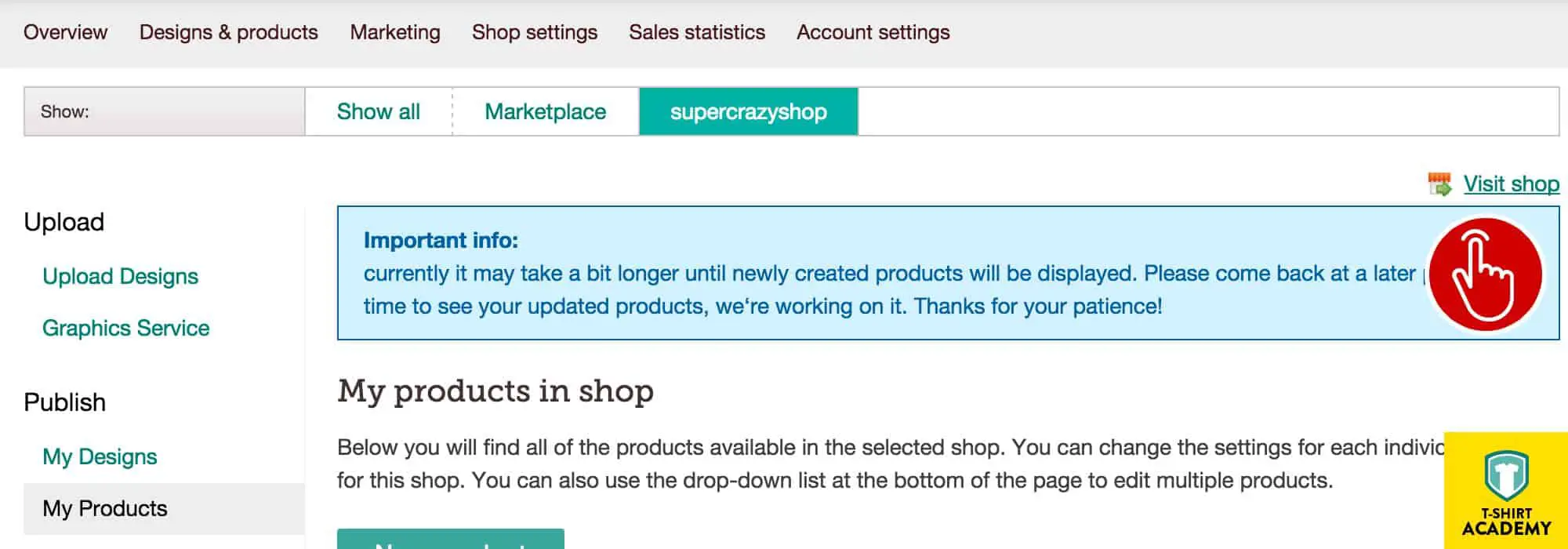
Please bear in mind that due to the large amount of users on Spreadshirt’s platform, certain processes are put into a queue and do not immediately show up on the website.
Therefore, it’s quite possible that you may need to wait up to 15 minutes until you see the product in your new Spreadshirt shop.
I know, it’s annoying, particularly when you’re a fast worker.
But it’s something we simply have to deal with as long as Spreadshirt’s servers can’t handle the extra workload more efficiently.
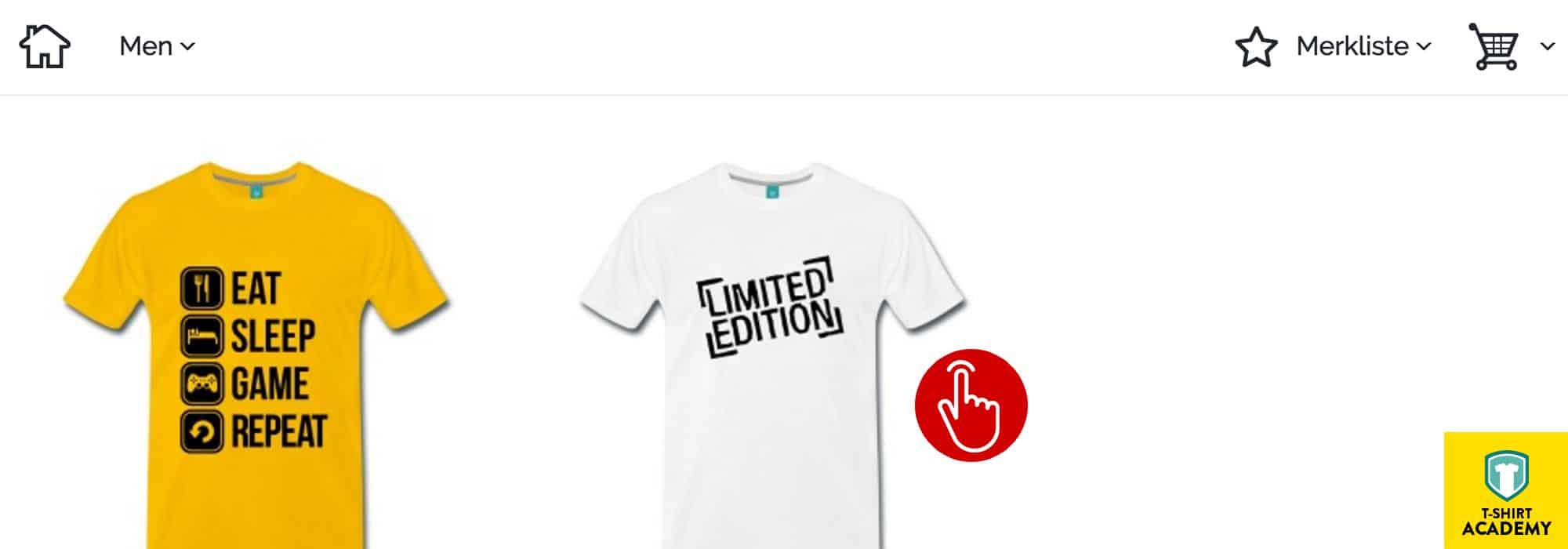
Shop Settings and New Designer Shop
Now, maybe you don’t actually want to create your own products and market them separately.
Maybe all you want to do is create a storefront and drive traffic to it, while the designing is done by the customers? Well guess what.
That’s possible too.
If you’re experienced in SEO and Adwords marketing, then this might actually be the more efficient way to go for you.
You see, very often customers actually want to design their own shirts and that is where the Spreadshirt Designer Shop comes in.
Setting up a designer Spreadshirt shop is super easy, because you already did all the groundwork when you set up the standard Spreadshirt shop.
But let’s not waste time.
It’s incredibly easy to do.
In the horizontal menu at the top, look for the menu item “Shop Settings” and click that.
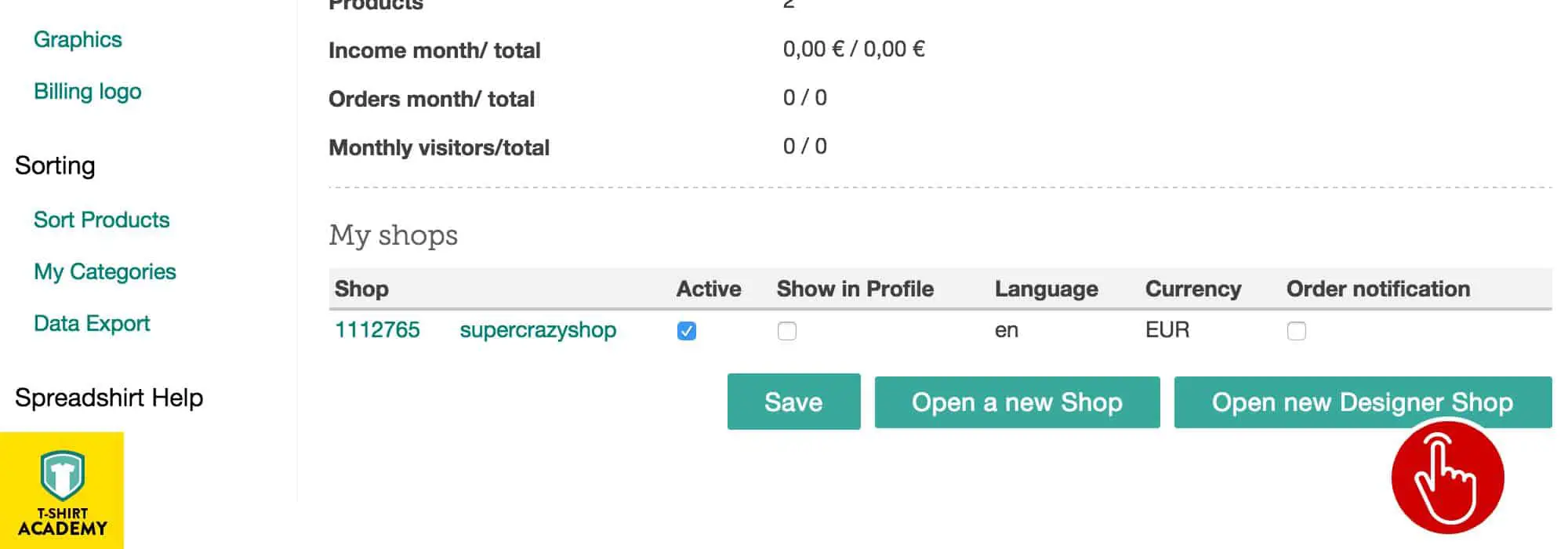
Further down the page, under the list of shops that you own, you’ll see three buttons.
And one of them is “Open a new Designer Shop”.
Simply click it and presto, you’ve got a designer Spreadshirt shop.
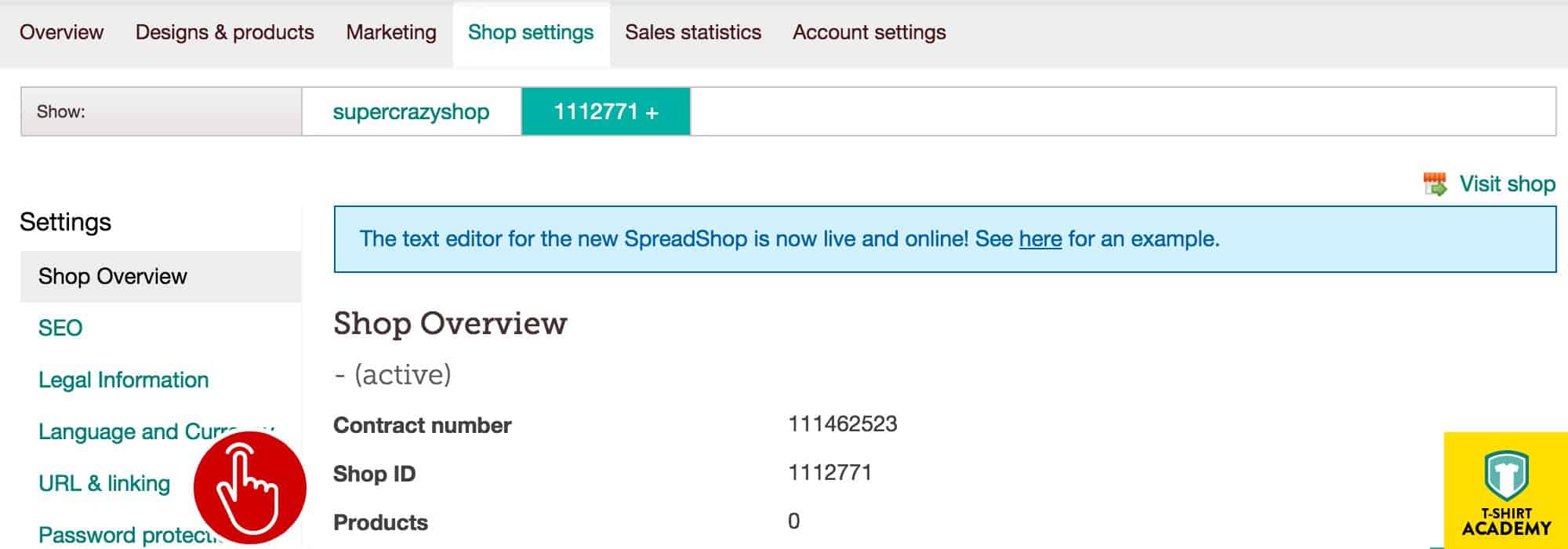
The only problem is, that it doesn’t have a proper name yet.
That’s why at first it gets listed with its ID number.
You might remember that you saw that before, when you created our initial Spreadshirt shop.
To fix this, make sure that you’ve selected the new Spreadshirt shop from the horizontal menu at the top.
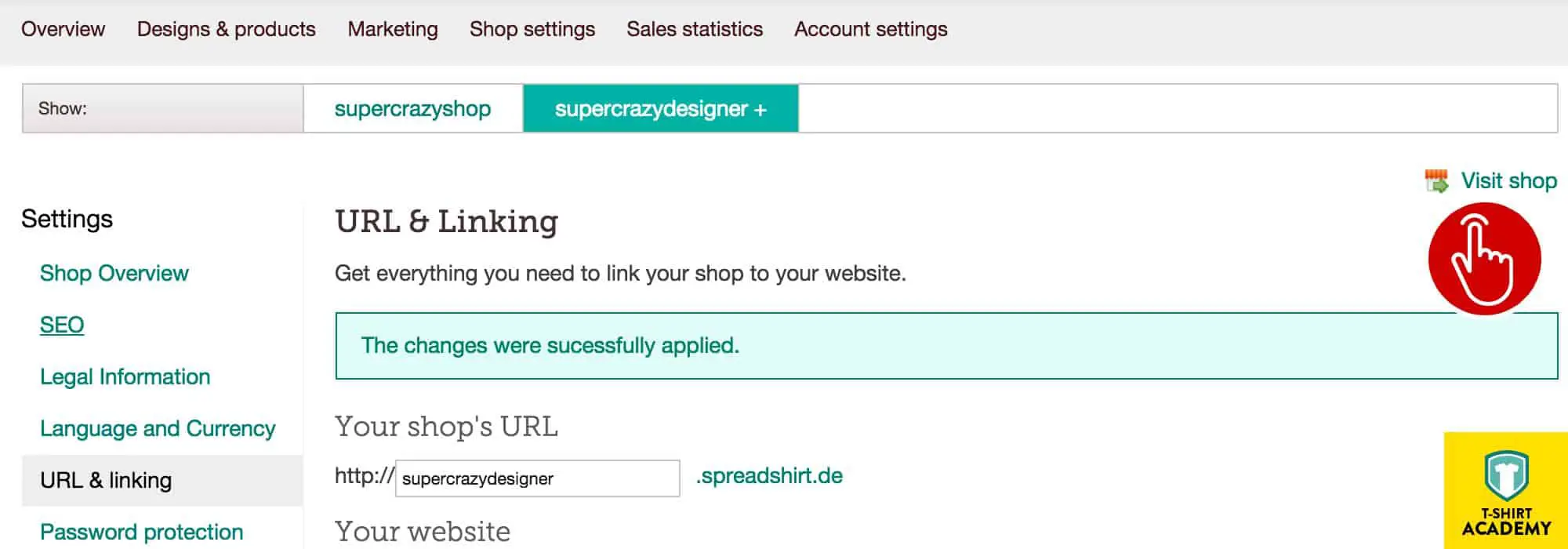
Once you’ve done that, you can click the menu item “URL & Linking” in the left hand menu unter “Settings”.
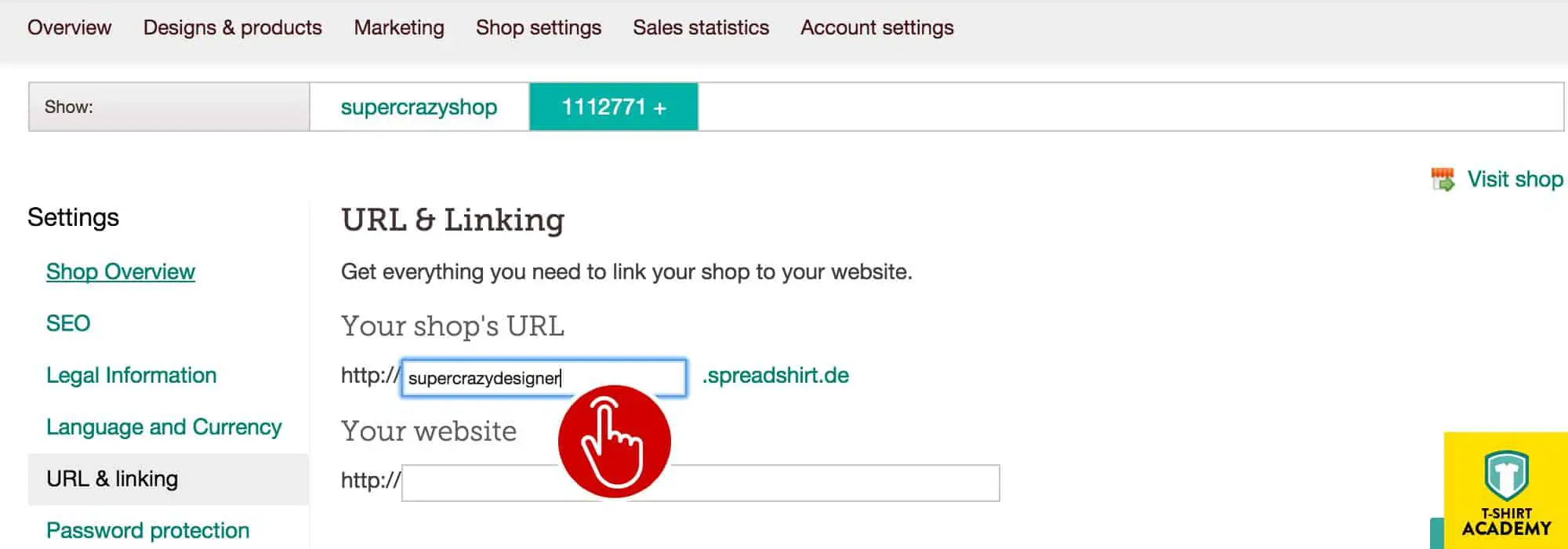
Right at the top is a text field that shows your Spreadshirt shop’s current URL.
You can change it to anything you like, as long as it’s not yet taken.
Unfortunately, in this case you actually needs to go via trial and error, because there’s no live database check.
But you’ll survive!
Visit Your Spreadshirt Shop
You can now visit your Spreadshirt shop via the same link as before (top right corner) or simply enter the URL with the new subdomain in your browser and off you go!
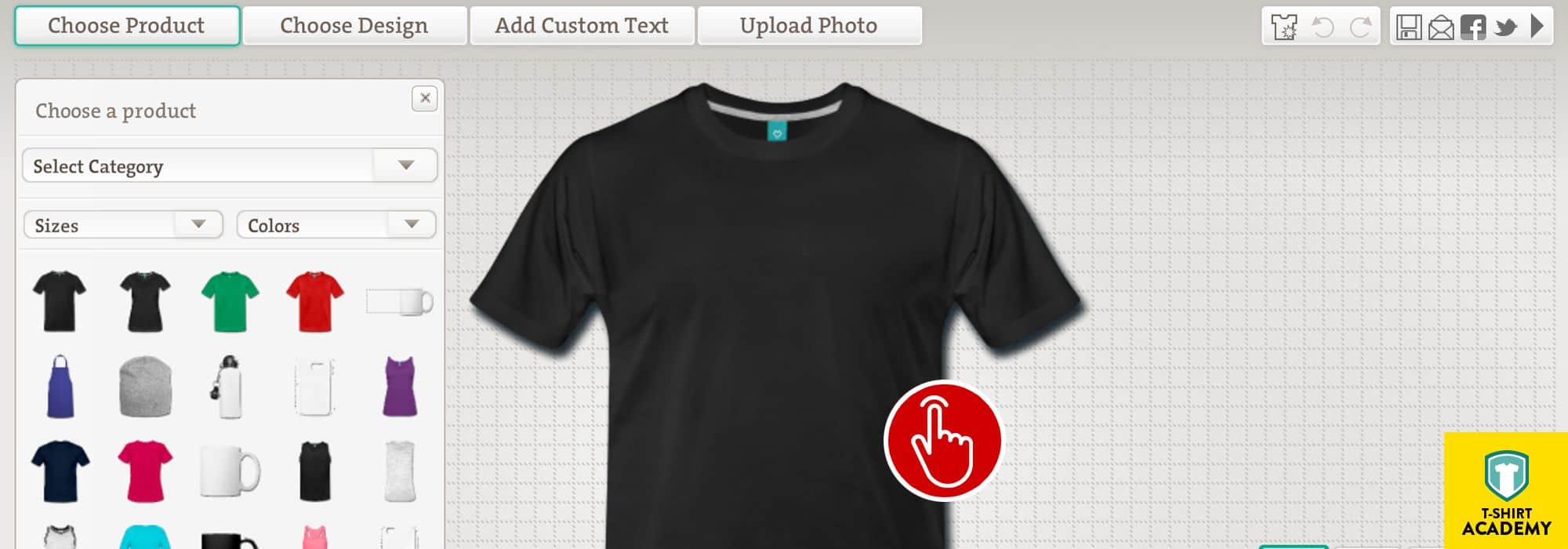
By default it will show the T-Shirt Designer version 7, which is good, but it’s not particularly compatible with mobile devices.
For the time being, you’ll be fine, but there will be a separate tutorial showing all the ins and outs of the detailed shop settings.
For the purposes of this tutorial, we’ll just stick with the default setting.
Some Closing Words
It’s a simple as that! Yes, of course you still need to put in a lot of work until you’ve got a full-fledged t-shirt shop.
But no one ever said that making money online was easy! This is just a first step towards that goal.
But wasn’t it a very quick step?
If you enjoyed this tutorial, please let me know by posting something in the comments section and you would like to see more tutorials like this one, sign up for FREE UPDATES via the signup form at the bottom of the page.

How to set up a Spreadshirt Designer Shop in 5 minutes
If you’ve come to this section of the tutorial, chances are you’re not even contemplating setting up your own Spreadshirt shop, but would rather focus on what you do best: creating awesome designs.
If that is the case, then you’ve come to the right place, because with this quick tutorial, you’ll be up and running within 5 minutes (provided you already have designs ready).
Check out the video if you want a step-by-step walkthrough.
If you’d rather take your time and read through the details, then simply continue the points listed below.
Signing up
Signing up to become a designer on Spreadshirt is no different from setting up a Spreadshirt shop.
Everyone needs the same type of account.
The differences are in the way you set things up later.
On the main Spreadshirt website, look for the “Login” menu item in the top right corner.
Move your mouse over it and click.
A short dropdown-menu will appear with various options, including a “Register Now” link.
Go ahead and click it! When you get to the login/registration screen, focus on the input field on the right hand side (unless you already have an account).
Enter your email address and submit the form.
This tutorial primarily focuses on new users, who have never dealt with any of Spreadshirt’s websites before.
So if you’ve been using Spreadshirt for a while already, this tutorial may seem overly simplistic to you.
Confirm Email, set Password, Anonymous Account
Once you hit the button, you get forwarded to a standardized version of the user area of your new account.
You’ll also get a confirmation email in your inbox, which contains a specific link that you need to click.
If you don’t click it, Spreadshirt may think that you’ve signed up with a fake or faulty email address.
That’s why it’s important to confirm your address.
When you click the link, a new page opens in your browser, prompting you to set your password.
This process is crucial, because it completes the user account registration.
Without a password, you won’t be able to login to your account later on.
Pick whatever password works best for you.
It’s really up to!
Once you’ve saved your new password, the browser will redirect to a new page, asking you to select your region.
Make sure you pick whichever reason you prefer to use.
Don’t worry, this won’t limit you in any way at a later stage.
It’s really just simply a preference setting for your account.
For the purposes of the this tutorial, we’ve simply gone with the “UK” region.
We could have used the “US” as well, because the site as 99% identical anyway.
But since we’re based in the EU, it just makes more sense.
We’ll go into all the detail of the other account settings at the later point in time.
It’s not really necessary right now.
Set Username and Your Data
You may have noticed that although you confirmed your email address, your account is still labeled as “Anonymous”.
We’re going to change that now.
From the menu on the left hand side, please choose the menu item “Change Login Data”.
This will send you to a new section of the user area, which allows you to make changes to usernames and passwords.
It’s really quite simple.
At the top, in the greyed box, you’ll see what your current “username” is.
To change it, and you really should, fill the text field below it with the new username you would like to have.
Don’t forget that your username of choice might already be taken by another user.
That’s why, as you are filling in the field, the form will continuously check its database for duplicates and you’ll see a little text-hint pop up, informing you whether the name is still available or not.
Once that’s done, look for the “My Data” menu item on the left hand side and click it.
The next page will then prompt you to fill in the form with all your personal details.
It’s sufficient to fill in the ones that are marked with an asterisk, but please make sure you fill in real information.
If you want to make money on Spreadshirt, you’re going to have to provide them with real contact details.
Otherwise you’re going to run into problems in the long run.
Upload New Design
Now that everything is setup properly, we can go ahead and start uploading some of our designs.
In order to do so, you must first click the “Designs & Products” menu item from the horizontal menu at the top of the page.
This automatically brings you to the “Upload file” section.
The process is very straightforward and there’s guidance along the way as well.
Essentially, you can either drag and drop the file onto the large upload field or simply click anywhere on the field in order to open the dialog and browse for the file you want to upload.
Make sure it fits the criteria listed on the upload field.
JPG, AI, GIF, CDR, EPS, PNG or SVG, all of those will do.
There’s a maximum design size (as in dimensions) and also a max file size.
Also, if you’re uploading a vector file, please stick to 1, 2 or a maximum of 3 colors.
Otherwise it will ruin your design.
Select Colors, Set Name and Tags
Once the file has been uploaded and if it’s a vector file, you’ll be asked to state how many colors the design has.
So either 1, 2 or 3.
After that, you’re asked to confirm that you are the original author of the design you’ve uploaded or have received proper authorization to use it for these commercial purposes.
This is primarily in order to indemnify Spreadshirt of anything you might be doing wrong.
It’s fairly easy to infringe upon other people’s intellectual property, even without knowing.
So I suggest you read up on the topic.
I’ll will be publishing a separate article on this in the future to help you guys out.
After confirming the copyright details, you’re asked to give the design a proper and up to 25 relevant keywords (but a minimum of 3).
I must stress the term “relevant”, because many users on Spreadshirt as well as other platforms tend to do something that we call “keyword spamming”.
They throw in loads of keywords which they believe or know people search for very often, irrespective of whether their design is relevant to that keyword or not.
One simple piece of advice: Don’t do it! Not only does it clutter the marketplace with irrelevant designs and makes search functions completely useless.
It actually reduces the likelihood of your design being sold.
If someone is searching for a banana, the last thing he or she wants to find in the list of results is a lion.
Why would the person buy that design? They wanted a banana!
Click the button to move on to the next step.
Your file will get uploaded to the platform.
This may take a few seconds as it processes the design.
When it’s done, you will see a window pop up and confirm this.
At the same time it will ask you whether you want to publish the design.
Don’t do that just yet.
You can still do that later!
Activate Designs & Set Commission
In some cases your design might still have some tiny flaws or design elements which are too thin.
Usually the Spreadshirt platform will fix those small details by itself.
This doesn’t take more than a few minutes and you know when it’s done when you receive an email asking you to activate the design.
When you click the link in the email, it will send you to the correct page and show you exactly what details need to be fixed.
If you select the correct radio button at the bottom of the page, everything will be taken care of for you in a matter of seconds.
Remember, this only applies to vector designs.
Regular graphics don’t require this step.
They just need to have a good resolution for printing.
Before we move on to publishing the design on the marketplace, we still need to set a commission.
If you don’t set anything here, you’ll be giving away your design for free and you don’t want to do that! You can figure out how much you want to charge by playing around a bit and seeing how sales go and there will definitely be another article on the topic.
However, I recommend working with €4,99 or $5,99 as a starting point.
You don’t want to go in too low, because you’ll be undercutting the marketplace average for no reason.
A few cents here or there won’t make or break your sales.
But it will massively reduce your profitability as well as for others.
Obviously, once you’ve updated the commissions, make sure you save them for your designs!
Publish & Wait
Now you’re ready to publish your designs.
Hit the “Publish” button for the relevant design.
You’ll be sent to a page, where you need to select and add a few more things.
The design name and the keywords were already filled in by yourself earlier, but you can still adjust them here.
You can also add a small description to the design which will increase the likelihood of the design being found as well.
But most importantly, you need to select a category.
While there is no rule as to how you need to select your category, I recommend using the same approach as for the tags/keywords.
Pick something that’s relevant!
And finally, the last thing you need to do is tick the “Terms & Conditions” box at the bottom of the page and hit “Submit”.
Once you do that, your design will be submitted for review before it eventually get cleared for sale on the marketplace.
This process will usually take a full work day.
So if you do this on Friday or on the weekend, don’t expect a confirmation before Monday afternoon.
Some Closing Words
So that’s it.
If you repeat this process over again without reading through all these details, you’ll notice that it really doesn’t take longer than 5 minutes.
But this is just the first step before you start to create something bigger.
If you enjoyed this tutorial, please let me know by posting something in the comments section and you would like to see more tutorials like this one, sign up for FREE UPDATES via the signup form at the bottom of the page.







6 comments
I know this if off topic but I’m looking into starting my own weblog and was wondering what all is required
to get set up? I’m assuming having a blog like yours would cost a pretty penny?
I’m not very internet smart so I’m not 100% positive. Any tips or advice would be greatly
appreciated. Thank you
Hi, I do think this is an excellent web site. I stumbled upon it 😉 I will return once again since i
have saved as a favorite it. Money and freedom is the best way to change, may you be rich and continue to help others.
Its very interesting article, thanks we liked it.
can u help me?
On what mail to request money ?
How to withdraw money from the site ?
Hi Denis, I think I already responded to your message on Twitter. Contact Spreadshirt support. They should be able to help you out with this issue.